MergeLine User Guide
MergeLine is a macOS comparison tool for reviewing files, pasted text, and folders side by side. It is designed for source code, configuration files, plain text, and other line-based content where you need to inspect differences and merge selected changes.
This guide walks through the main workflow for first-time users.
1. Start a File Comparison
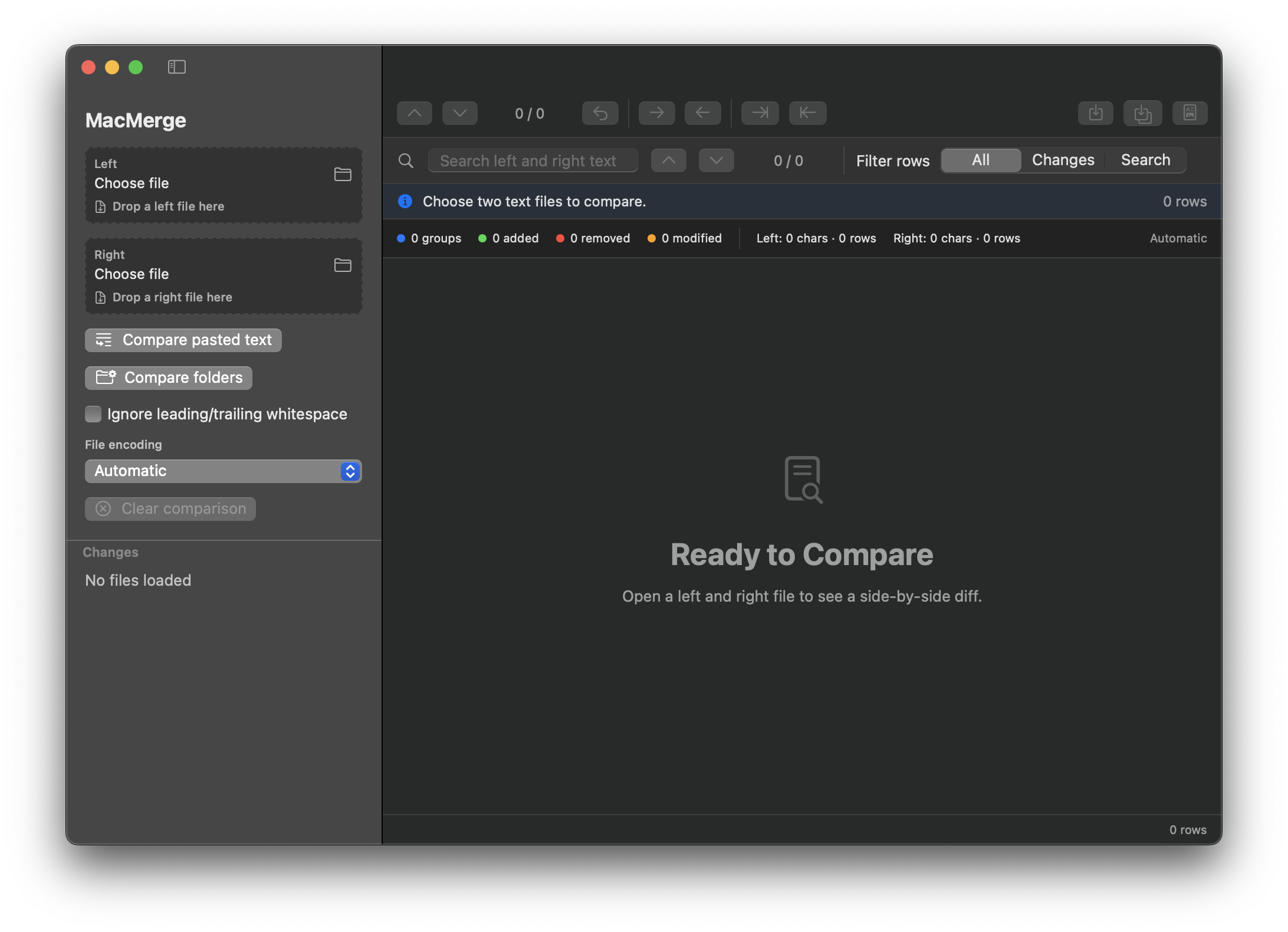
When you open MergeLine, the sidebar shows separate areas for the left and right files.
You can start a comparison in three ways.
- Click the folder button in the left file area and choose the left file.
- Click the folder button in the right file area and choose the right file.
- Drag and drop files into the app window.
If you drop two files at once, MergeLine places them into the left and right sides automatically. After both files are loaded, the comparison appears in the main side-by-side view.
2. Read the Comparison View
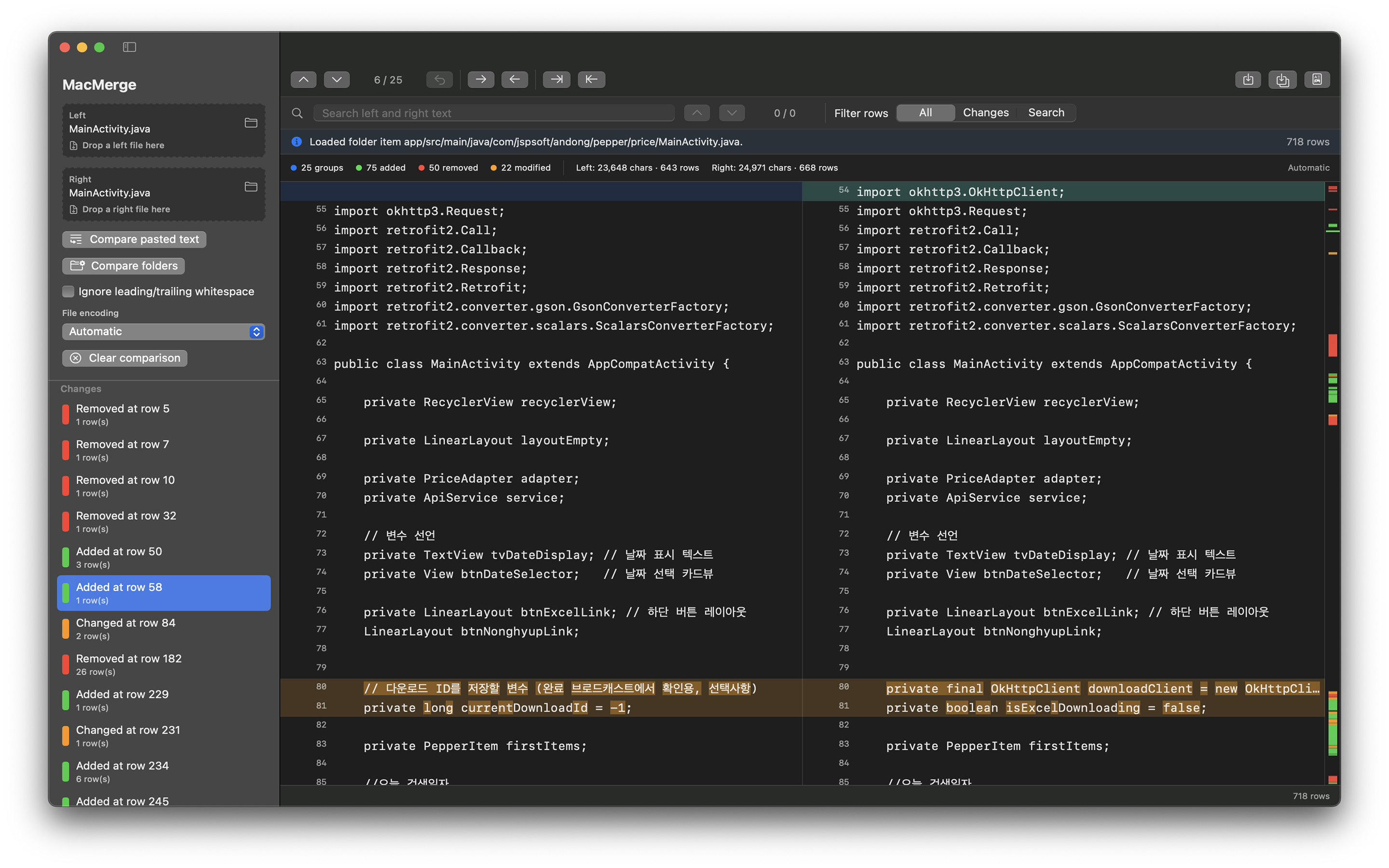
The main comparison view shows the left file and the right file next to each other. Rows are highlighted by change type.
- Added: a line that exists on one side but not the other
- Removed: a line that was removed from one side
- Modified: a line that exists on both sides but has different content
- Equal: a line that is the same on both sides
The status area shows the number of change groups, added lines, removed lines, modified lines, character counts, and row counts.
Long lines wrap to fit the available column width. For extremely long single-line content, MergeLine may shorten the displayed text after a safety limit to keep the app responsive. The original comparison, merge, and save data remains unchanged.
3. Navigate Changes
Use the navigation buttons in the top toolbar to move through changes quickly.
- Up/down arrows: move to the previous or next change group
- Change group counter: see the current change position
- Mini map: preview where changes appear throughout the file
The mini map on the right edge of the comparison view lets you jump directly to a change location. This is especially useful for long files.
4. Search and Filter Rows
Use the search field to find text across both the left and right sides.
The row filter has three modes.
- All: show every row
- Changed: show only rows with differences
- Search: show only rows matching the current search
For large files, searching and switching filters can take a moment. MergeLine displays a working message while it processes the result.
5. Copy and Merge Changes
MergeLine can copy changes from one side to the other.
- Copy left to right: apply the selected change to the right file
- Copy right to left: apply the selected change to the left file
- Apply all left to right: apply all left-side changes to the right side
- Apply all right to left: apply all right-side changes to the left side
Apply-all actions include a confirmation step to help prevent accidental changes. The most recent merge action can be undone.
After applying changes, use the save buttons to write the updated content back to disk.
6. Compare Pasted Text
You can compare text directly without creating files.
Click the pasted text comparison button in the sidebar. MergeLine opens left and right text input areas. Paste the content you want to compare, then click the compare button. The result opens in the same comparison view used for file comparisons.
This is useful for:
- Comparing text from email or chat
- Reviewing part of a document
- Checking temporary code snippets
- Comparing configuration values that have not been saved as files
7. Compare Folders
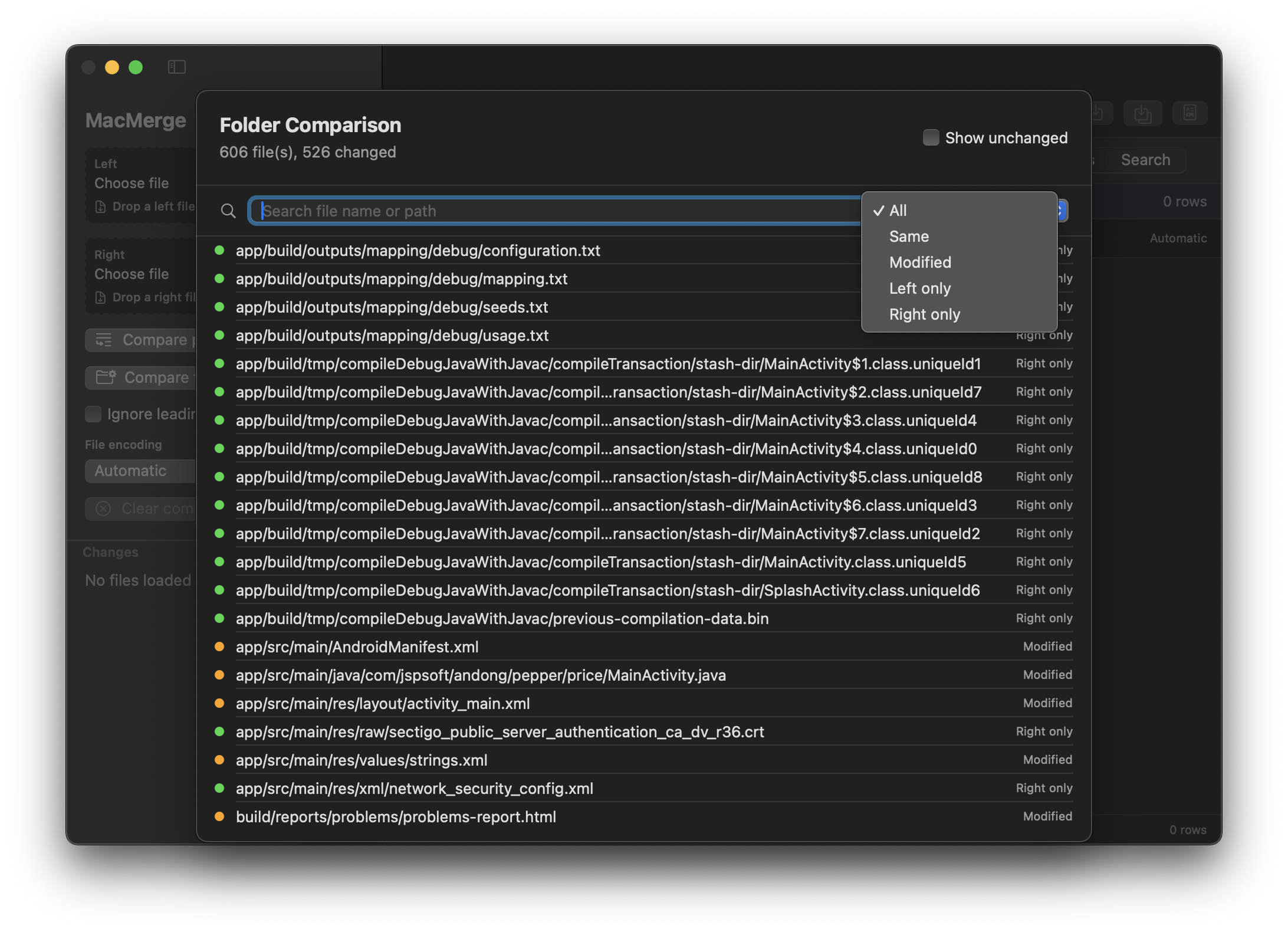
Folder comparison checks two folders by relative file path.
Choose the folder comparison option in the sidebar, then select the left and right folders. MacMerge reports files by status.
- Equal: files exist on both sides and have the same content
- Modified: files exist on both sides but have different content
- Left only: files exist only in the left folder
- Right only: files exist only in the right folder
Select a file from the folder comparison result to open it in the side-by-side file comparison view.
8. Choose File Encoding
If a file appears with broken or unexpected characters, try changing the file encoding option in the sidebar.
MergeLine supports:
- Automatic detection
- UTF-8
- UTF-16
- Windows Korean
Windows Korean is useful for older Korean text files created on Windows. Most modern text and source files should work well with Automatic or UTF-8.
9. Ignore Leading and Trailing Whitespace
Enable the ignore leading/trailing whitespace option when you want MergeLine to treat whitespace-only edge differences as equal.
For example, "value" and " value " can be treated as the same line. This is helpful when reviewing files with formatting or spacing changes that are not meaningful to you.
10. Reopen Recent Sessions
MergeLine remembers recent comparison sessions, including the left and right files, options, and window size. You can reopen a previous comparison from the recent sessions list in the sidebar.
Recent sessions support:
- Reopening a previous comparison
- Renaming a session
- Deleting sessions you no longer need
If you frequently compare the same file pair, recent sessions can save time.
11. Export an HTML Report
You can export the current comparison as an HTML report. Reports are useful for sharing review results or keeping a record of changes.
Click the export button, choose a destination, and MacMerge saves the current comparison result as an HTML file.
12. Binary and Image File Guidance
MergeLine is a text comparison tool. If you select an image or binary file, MergeLine does not force it to appear as unreadable text. Instead, it shows a friendly message explaining that the selected file is not a text file.
For images and binary files, use a dedicated viewer or comparison tool.
13. Keyboard Shortcuts
Common actions are available from the keyboard.
- Command-O: compare files
- Command-L: open left file
- Command-R: open right file
- Command-Shift-T: compare pasted text
- Command-Shift-F: compare folders
- Command-F: search
- Command-[: previous change
- Command-]: next change
14. Privacy and File Access
MergeLine processes comparisons locally on your Mac. It does not send compared file contents or pasted text to external servers.
Because MergeLine is a sandboxed macOS app, it can access only files and folders you explicitly select through the file picker or drag and drop. Recent sessions and settings are stored locally on your device for convenience.
Final Notes
MergeLine is more than a basic difference viewer. It provides a focused macOS workspace for comparing text, reviewing changes, and applying selected updates from either side.
Start with a simple two-file comparison, then add search, filters, the mini map, apply-all actions, recent sessions, and folder comparison as your workflow grows.
